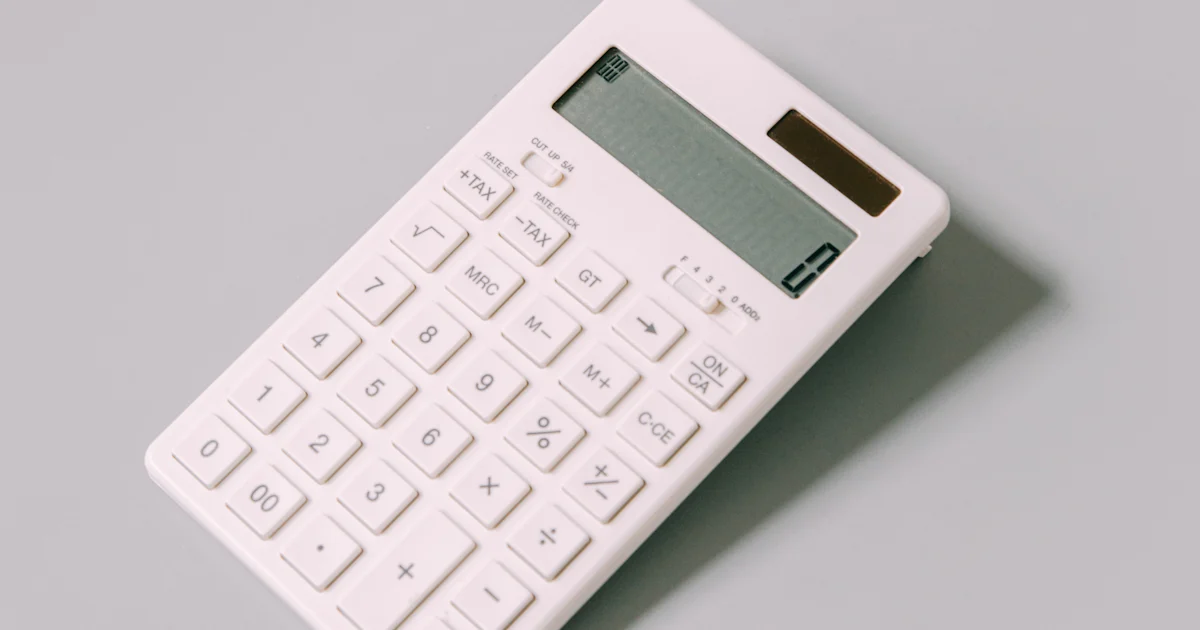
The calculator in your browser: faster than any device in the drawer
Whether it is a shopping total, a utility bill or homework: a calculator is one of the most frequently used tools of all. Online, you have it open in seconds, with no batteries and no searching through the desk drawer. To make sure the result is actually correct, however, it is worth understanding how a calculator processes what you type. Many calculation errors are not caused by the arithmetic itself but by the input.
This guide explains the rules the online calculator follows, how to use brackets, percent and memory sensibly, what rounding and precision are about and what the scientific functions are good for. You can try every example directly in the calculator at the top of the page.
Two kinds of calculator: immediate execution or formula-based
Simple desk calculators usually work with immediate execution: each operation is carried out as soon as you press the next key. If you type 2 + 3 × 4 on such a device you often get 20, because it first calculates 2 + 3 = 5 and then multiplies by 4. Mathematically correct, however, is 14, because multiplication comes before addition.
Our online calculator is formula-based: you enter the whole calculation, and only when you press "=" is the entire expression evaluated according to mathematical rules. While you are still typing, the display already shows a preview result. That way you can see at once whether the calculation does what you expect.
The rules: brackets, powers, multiplication, addition
The order is fixed. Brackets are calculated first, then powers and roots, then multiplication and division, and finally addition and subtraction. Within the same level, calculation runs from left to right: 20 − 5 − 3 gives 12, not 18.
Powers are the exception. They are grouped from right to left: 2^3^2 means 2^(3^2) = 2^9 = 512. Also important: a minus sign in front of a number binds less strongly than the power. −2² therefore gives −4. If you want the square of −2, write (−2)² = 4. Detailed examples and memory aids can be found in the article Order of operations.
Using brackets deliberately
Brackets are the most important tool for making a calculation unambiguous. Use them whenever an addition or subtraction should be carried out before a multiplication or division, for example when calculating an average: (12 + 15 + 18) ÷ 3 = 15. Without brackets only the 18 would be divided by 3, and you would get 33.
The calculator helps you here: if you forget a closing bracket at the end, it is added automatically. It also understands the shorthand without a multiplication sign. 3(4 + 1) is read as 3 × (4 + 1) = 15, and 2π as 2 × π. This is handy for formulas from textbooks or technical literature, which are often written that way.
Decimals: point or comma?
In English the decimal separator is the point; in German it is the comma. The calculator accepts both: 1.5 and 1,5 mean the same. The English display uses commas as thousands separators, for example 1,234,567.89. If you copy such a number from a document and paste it into the calculator, the thousands separators are removed automatically.
Percentages with the % key
The percent key behaves like on a classic desk calculator. 200 + 10% gives 220, because 10% of 200 is added. 200 − 10% gives 180, which corresponds to a discount. 200 × 10% gives 20, the percentage amount itself. A number on its own with % is divided by 100: 19% corresponds to 0.19.
This is very practical for mark-ups such as VAT: 100 + 19% gives 119 gross. How the key works in detail and which pitfalls exist is shown in the article Percent on a calculator. If you need base value, percentage rate or percentage change with the working shown, the percentage calculator is the better choice.
Memory: M+, M−, MR and MC
The memory lets you hold on to a number while you keep calculating. M+ evaluates the current input and adds the result to memory, M− subtracts it. MR inserts the stored value into the current calculation, and MC clears the memory. While the memory holds a value, the display shows a small "M".
A typical example is a bill with several items: 3 × 4.99 and M+, then 2 × 12.50 and M+, then 1 × 7.20 and M+. MR gives you the total of 47.17. If a voucher of 5 should be deducted, type 5 and press M−.
History: retracing your calculations
Every completed calculation is added to the history next to the calculator. There you can see your last 20 calculations with their results. Clicking an entry inserts the result into the current calculation. Use the copy icon to copy a single line, or "Copy all" to copy the whole history, for example to paste it into an email or a spreadsheet.
The history is stored exclusively in your browser's local storage. No data is sent to a server. When you no longer need it, delete it with the bin icon.
Rounding and precision
Computers calculate internally with binary numbers. Some decimal numbers such as 0.1 cannot be represented exactly in binary. Without correction, 0.1 + 0.2 therefore gives 0.30000000000000004. Our calculator rounds every result to 12 significant digits and sets tiny rounding leftovers from subtractions to zero. So you get 0.3, just as you expect.
Twelve significant digits are enough for practically every application in everyday life, school and work. Very large or very small numbers are shown in scientific notation, for example 1.5 × 10^20 instead of a number with 21 digits. You can continue calculating directly with this representation.
Scientific functions
In "Scientific" mode additional keys appear: sine, cosine and tangent with their inverse functions, the natural logarithm (ln) and common logarithm (log), e^x and 10^x, powers, cube root, reciprocal, factorial, absolute value and the constants π and e. The "Ans" key inserts the last result.
With trigonometric functions, pay attention to the angle mode. DEG stands for degrees, RAD for radians. In DEG mode sin(30) gives exactly 0.5; in RAD mode about −0.988. Values such as sin(180°) or cos(90°) are returned exactly as 0. Undefined values such as tan(90°) are reported as an error. An overview of all functions is provided in the article Scientific calculator functions, and powers and roots are covered in Calculating roots and powers.
Using the keyboard
On a computer, the keyboard is the fastest way to calculate. Type digits, point or comma and + − * / ^ ( ) and % directly. Enter or = calculates the result, Backspace deletes the last input and Esc clears everything. There are shortcuts for common functions: s, c and t for sin, cos and tan, r for the square root, l for ln, g for log and p for π.
You can also paste a complete calculation, such as "(1,250 + 380) × 1.19" from a document. Characters such as × and ÷ are recognised. Input with unknown characters is rejected for security reasons, because the calculator only evaluates genuine mathematical expressions.
Common mistakes and how to avoid them
The most common mistake is missing brackets in fractions. If you mean (a + b) ÷ c but type a + b ÷ c, only b is divided. It is similar with the minus sign: −3² is −9, whereas (−3)² is 9. A second classic is the percent key with multiplication. 200 × 10% returns 20, not 220. For a mark-up, write 200 + 10%.
A quick plausibility check helps: is the result in the expected order of magnitude? A rough estimate in your head, such as 19.90 × 12 ≈ 20 × 12 = 240, protects you against a mistyped decimal point. Division by zero is undefined; the calculator then shows a note instead of a wrong number.
When a specialised calculator is better
For many everyday questions, a particular formula or legal rule sits behind the calculation. In that case you save time and avoid mistakes with a specialised calculator. For fractions with reduction and mixed numbers there is the fraction calculator, for proportion problems the rule of three calculator. VAT is handled by the VAT calculator, areas by the area calculator.
Directly below the calculator you will find all calculators on the portal sorted by topic, from taxes and salary to housing and health. For everything else, the calculator is the fastest tool. Try it out: enter a calculation at the top and press Enter.